ScoutCloud vs SmugMug
Plenty of scouts keep years of location photos on SmugMug. It's a great home for photography. Here's an honest look at where it shines, where a location-first tool fits better, and how to move your library over with your folders intact.
Where SmugMug is genuinely good
- Hosting a large photo library at full resolution.
- A polished portfolio website for a photographer.
- Client galleries for finished photography, with options to sell prints and downloads.
If your main job is showing and selling photography, SmugMug was built for exactly that. This comparison is about a different job: presenting locations to a director, producer, or client.
Where a location-first tool fits better
1. A gallery is a set of photos, not a location
A location is more than its pictures: an address, notes, parking and access, an owner contact, video walkthroughs, reference links. In a gallery, that context ends up in captions or a separate document.
2. Scouting work is organised by shoot, not by portfolio
Scouts pull the same locations into many projects: this commercial, that feature, next month's pitch. ScoutCloud keeps one library and lets you add any location to any project without copying files around.
3. Clients react to options, not just view them
In ScoutCloud a director can like and comment on specific locations and photos without making an account, and you get notified when your project is viewed.
4. Presentation templates made for scouting
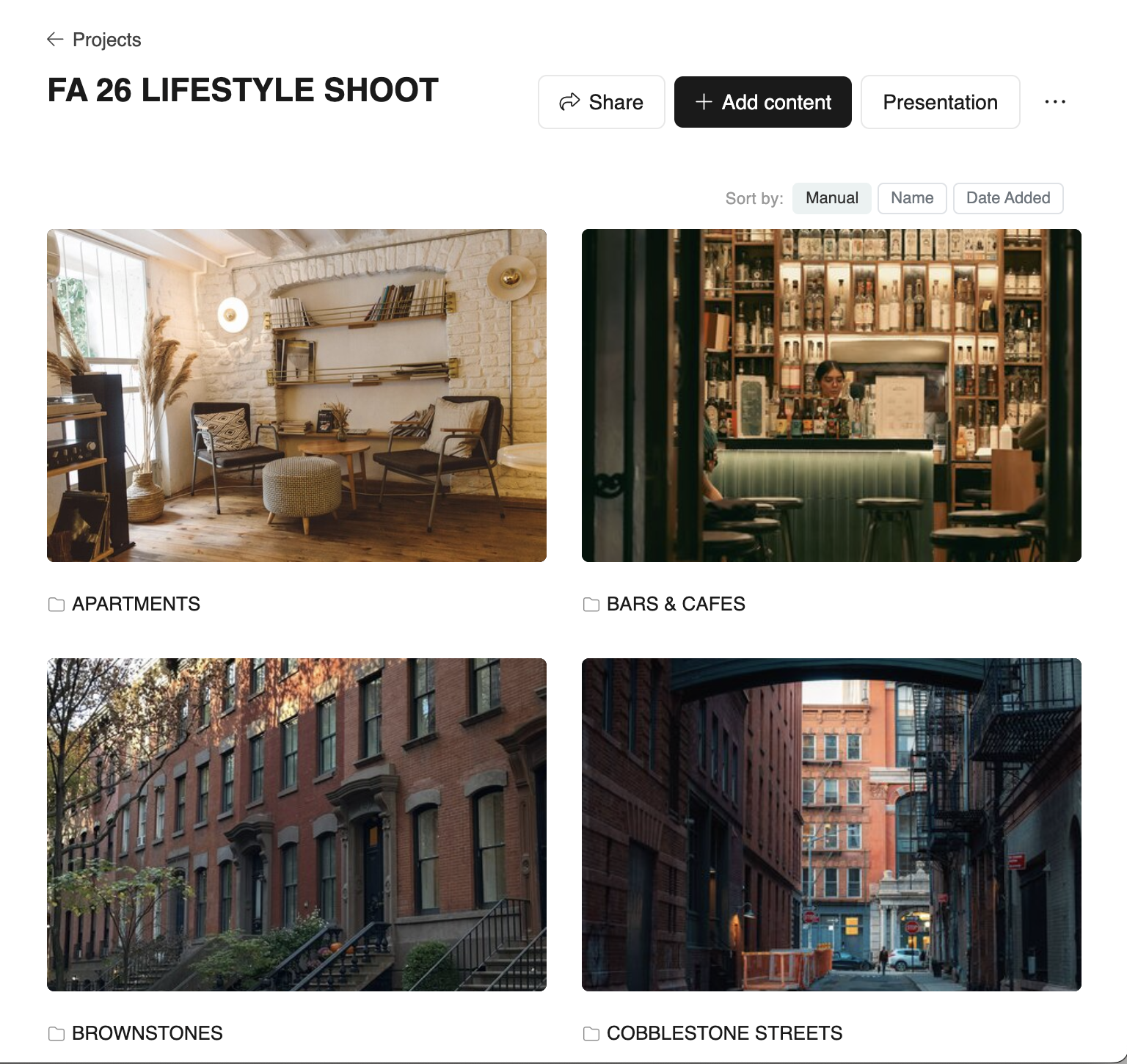
A ScoutCloud project renders as a client-ready presentation automatically, including a map of the locations. Updating it is just editing the project; the link stays the same.
Side-by-side
| Need | SmugMug | ScoutCloud |
|---|---|---|
| Photographer portfolio website and print sales | Excellent | Not its focus |
| "A location" with photos, video, address, notes, and links together | Galleries of photos and video, plus captions | Built in |
| Reusing the same locations across many client projects | Organised by gallery | One library, add to any project |
| A client-ready presentation of a shoot's locations, with a map | Galleries, arranged by hand | Projects render automatically, map included |
How to move your SmugMug library to ScoutCloud
There are two steps: download your photos from SmugMug, then drop the folder into ScoutCloud. Your folder structure carries over, so each SmugMug gallery becomes a ScoutCloud folder.
- Download your originals from SmugMug. For a few galleries, use SmugMug's own download: open the Organizer, pick a gallery, choose Select All, then the download icon, and SmugMug emails you a zip of the original files. For a whole account, use one of the download tools SmugMug lists for this (several Mac and Windows apps download every gallery and keep the folder structure). Choose original files, not resized copies.
- Unzip and keep the folders as they are. Each gallery should be its own folder; folders inside folders are fine.
- Create a free ScoutCloud account (or sign in) and open your Library.
- Drag the top folder into the Library. ScoutCloud recreates the same folders and uploads everything inside. Leave the tab open until the upload finishes; videos and HEIC photos are converted in the background and appear shortly after.
- Let ScoutCloud do the rest. Photos keep their dates, folders can pick up an address from photo GPS, and photos are tagged so you can search them by what's in them.
What doesn't carry over: SmugMug-only details like captions, keywords, and gallery descriptions aren't stored in the photo files, so they won't come across automatically.
Moving a very large library? Get in touch and we'll help you plan it.
See SmugMug's own help for downloading your photos and its list of download tools.
When ScoutCloud is the right choice
- You present location options to directors, producers, or clients.
- You reuse the same locations across many projects.
- You want clients to react without making an account.
When SmugMug alone is fine
- You mainly show and sell finished photography.
- You want a portfolio website more than a scouting workspace.
Bring your locations to ScoutCloud
Drag in your SmugMug folders and present them as client-ready projects.
No credit card No client login required