ScoutCloud vs Google Drive & Google Photos
Google Drive and Google Photos are where a lot of scouting starts: they're already on your phone and everyone has a Google account. Here's an honest look at where they shine, and what changes when you need to present locations to a client.
Where Google is genuinely good
- Google Drive: storing and sharing files of any kind, alongside Docs and Sheets for call sheets and location lists.
- Google Photos: backing up your phone automatically, with excellent search by people, places, and things.
- Both: quick sharing with people who already live in Google's tools.
For keeping everything you shoot, Google is hard to beat. This comparison is about the moment you need to present locations to a director, producer, or client.
Where Google starts to creak for location scouts
1. A folder or album is not a presentation
A shared Drive folder is a list of files, and a shared album is a stream of photos. The client has to work out which images belong to which location, which option you recommend, and where each place is.
2. Location details live somewhere else
The address, access notes, owner contact, and reference links end up in a Doc or Sheet next to the photos, not with them.
3. Feedback usually means a Google sign-in
Commenting in Drive or on a shared album generally means the client signs in with a Google account, and the conversation sits next to a file rather than a location. In ScoutCloud, clients like and comment on locations without an account.
4. Every pitch is rebuilt by hand
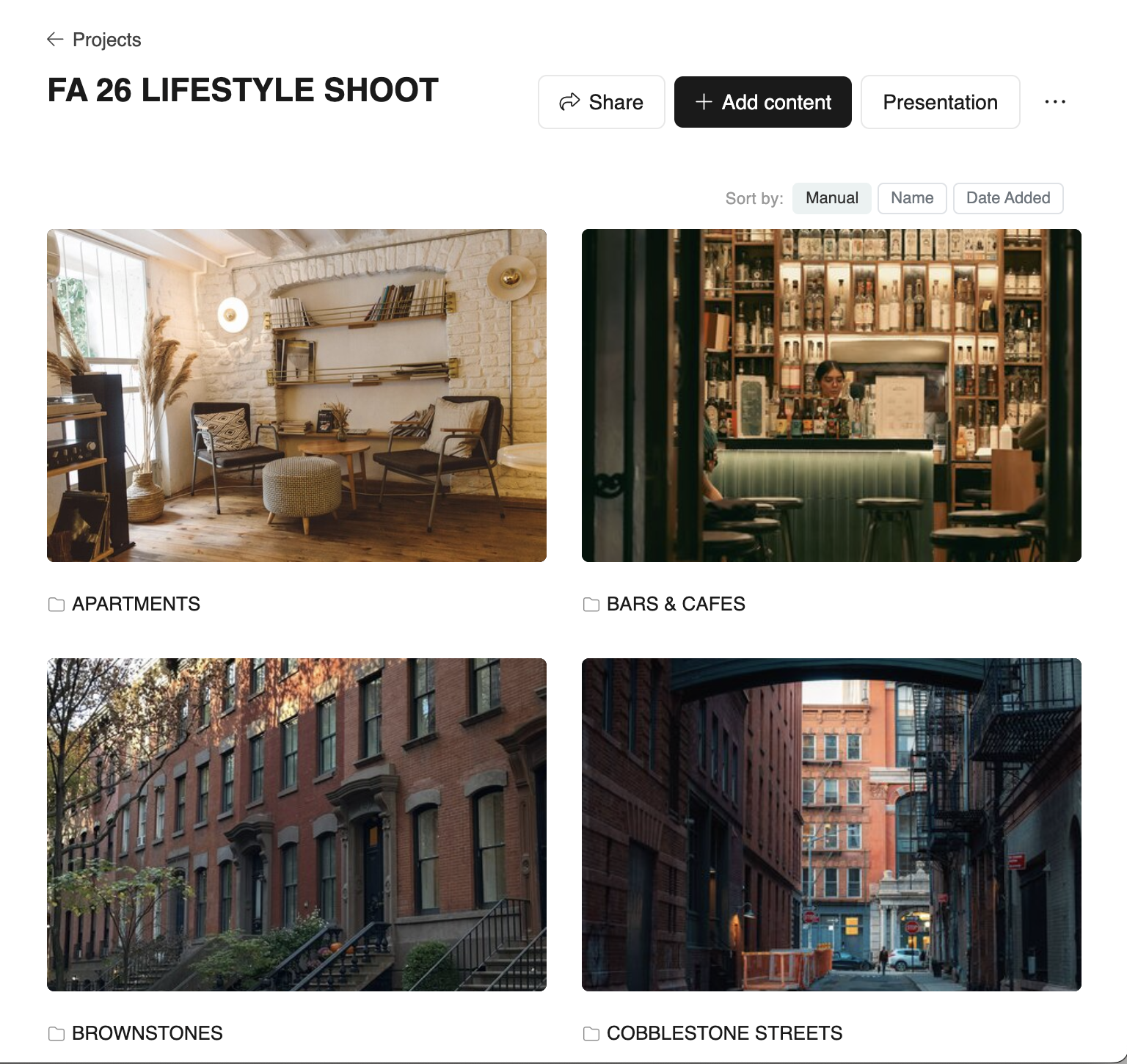
Turning a Drive folder into something presentable usually means building slides. A ScoutCloud project renders as a presentation automatically, and updating it keeps the same link.
Side-by-side
| Need | Google Drive / Photos | ScoutCloud |
|---|---|---|
| Backing up and storing everything you shoot | Excellent | Not its focus — keep Google as the archive |
| "A location" with photos, video, address, notes, and links together | Files plus a separate Doc or Sheet | Built in |
| A client-ready presentation of a shoot's locations, with a map | Folder or album, or slides built by hand | Projects render automatically, map included |
| Client likes and comments on specific locations | Usually needs a Google sign-in | No account needed |
| Knowing when a client has looked | Depends on your Google Workspace plan | Notified when your project is viewed |
| Revisions: adding or swapping a location | Update the folder, rebuild any slides | Edit in place; the link stays the same |
How most scouts use both
Keep Google Drive or Google Photos as the archive of everything you shoot, and use ScoutCloud for the locations you're pitching. To bring a set over, download the folder or album from Google and drag it into your ScoutCloud Library: the folders come across as they are, and photos keep their dates and GPS.
When ScoutCloud is the right choice
- You regularly present location options to directors, producers, or clients.
- You want one link instead of "a Drive folder plus a Sheet plus some slides."
- You want clients to react without signing in to anything.
When Google alone is fine
- You're handing over raw files for someone else to package.
- The recipient only needs to download, not review options.
Keep Google for storage. Present with ScoutCloud.
One share link your clients can react to, no slides to rebuild.
No credit card No client login required